
If you recently upgraded to the Samsung Galaxy S26 Ultra, you may have noticed an unsettling red tint or reddish patches appearing across your display. In the last 24 hours, reports have surged across tech communities, drawing concern from major outlets regarding the new ‘Privacy Display’ panel. It is a frustrating scenario: you invest in the pinnacle of mobile innovation, only to be met with hardware performance that feels like a step backward. Whether this is a permanent hardware defect or a screen calibration issue linked to the latest One UI 9 beta remains the central question for thousands of users.
Navigating this uncertainty is taxing. While Samsung has officially acknowledged that an investigation is underway, the waiting game for a root cause analysis can be agonizing. This guide serves as your definitive tracker, helping you distinguish between software-based glitches and true hardware failures, while providing the actionable steps you need to secure a potential warranty replacement. We are here to help you cut through the noise, maintain your focus, and resolve your device concerns with clarity and confidence.
Samsung Galaxy S26 Ultra: Understanding the Reported ‘Privacy Display’ Red Tint Issue
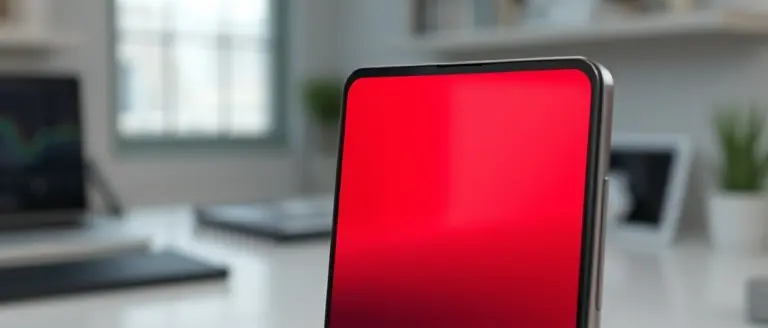
Recent reports concerning a Samsung Galaxy S26 Ultra defect have sparked significant concern among early adopters. Users are reporting an unsettling “red tint” or distinct reddish patches manifesting primarily in the center of the device’s display. This anomaly is closely linked to the device’s innovative Privacy Display panel, a hardware feature designed to restrict viewing angles and enhance user privacy. Major tech outlets, including Android Authority and Digital Trends, have highlighted that this issue is not merely a software glitch but potentially a more complex interaction involving the display’s unique physical composition.
Official Status and Technical Investigation
Samsung has officially acknowledged the reports and confirmed that they are actively investigating the root cause of these visual artifacts. As of now, the company has clarified that they have not yet identified a definitive technical origin for the discoloration. While many users initially suspected that the issue might be related to the recent One UI 9 beta update, current evidence suggests a stronger correlation with hardware-level performance within the privacy-focused display technology.
Key insights into the situation include:
- Scope of the Issue: The red tint typically appears suddenly, often after prolonged use or when the privacy filter is active.
- Hardware vs. Software: While software calibration is being explored, the consensus among industry experts points toward the Privacy Display panel as the primary area of concern.
- Samsung’s Stance: The manufacturer is currently evaluating whether this is a widespread manufacturing defect or limited to specific production batches.
- Consumer Impact: There is no confirmed software fix available, leaving many users seeking guidance on potential screen replacements or warranty-backed repairs.
Because the investigation is ongoing, owners are encouraged to document the specific conditions under which the reddish patches appear. As we wait for a formal root cause analysis from Samsung, it is vital to distinguish these hardware manifestations from transient, update-related software bugs that typically affect color profiles across the entire interface. We recommend that users monitor official support channels closely for authorized repair pathways.
How to Determine if Your Device Is Affected
If you are concerned that your Samsung Galaxy S26 Ultra is suffering from the reported Privacy Display panel defect, you can perform a diagnostic check at home. Because the reddish patches often appear subtle under high ambient light, environmental control is essential for an accurate assessment. Evidence suggests that these irregularities are most prominent when the display is processing dark grays and mid-tone colors at lower brightness levels.
Step-by-Step Diagnostic Process
To isolate potential hardware issues from general One UI 9 beta software bugs, follow these diagnostic steps in a completely dark room:
- Prepare the Environment: Turn off all lights in your room. A dark environment is critical to ensure that your eyes are adjusted to low light, allowing you to perceive color shifts that would be invisible in a standard office or outdoor setting.
- Utilize a Neutral Background: Navigate to a solid gray image or a “gray screen test” website. Do not use pure black, as OLED pixels may turn off completely, masking the red tint. A mid-gray background (approximately 20% to 50% brightness) is the industry standard for identifying panel uniformity issues.
- Adjust Brightness Levels: Set your screen brightness to roughly 15%–25%. Slowly move the slider up and down. If you notice persistent reddish patches or a localized “tint” that does not shift or disappear when you toggle between Dark Mode and Light Mode, this may indicate a hardware-level samsung galaxy s26 ultra defect.
- Check Privacy Settings: Temporarily disable the “Privacy Display” feature in your device settings. If the red tint remains even with this specific hardware-linked feature deactivated, document the findings with a secondary camera or screenshot (though hardware tint is often physical and may not appear in a digital screenshot).
If your device exhibits clear, uneven color discoloration during this test, refrain from performing a factory reset, as it is unlikely to resolve a hardware-related display failure. Instead, capture a clear photo of the screen against a gray background to use as evidence for your Samsung warranty claim. Ensure you note the exact conditions under which the tint appears, as this information is vital for authorized service centers during the verification process.
Software vs. Hardware: Distinguishing One UI 9 from the Display Defect
It is critical for users to understand that the Samsung Galaxy S26 Ultra defect involving the reddish patches is currently being treated by industry experts and Samsung as a hardware-level issue linked to the device’s Privacy Display panel. While the timing of the widespread reports coincided with the rollout of the One UI 9 beta, evidence suggests that these two events are unrelated. Confusion often arises because screen-related glitches in the past were frequently rectified via software patches or calibration updates; however, in this instance, the “red tint” appears to be a physical degradation of the display panel itself rather than a color profile error.
Why Software Troubleshooting Won’t Fix the Red Tint
Many users have attempted to resolve the discoloration through standard software maintenance, such as performing a factory reset, clearing the system cache, or adjusting color balance settings within the One UI 9 menu. Unfortunately, because the defect is rooted in the new hardware technology—specifically the Privacy Display layer—these efforts are ineffective. If you are experiencing a permanent red hue that remains visible even when the device is booting up or in a static image, you are likely dealing with a hardware failure.
- Avoid Excessive Troubleshooting: Engaging in repeated factory resets or deep system modifications will not repair a damaged display panel and may complicate the warranty claim process.
- Identify the Symptom: Unlike software-based color shifts that might change based on the application, the hardware-linked red tint often appears as consistent reddish patches, typically localized in the center of the screen.
- Maintain Documentation: If you notice this display degradation, document it with a secondary camera immediately and refrain from attempting risky software “fixes” that could void your support eligibility.
By focusing on hardware documentation rather than software calibration, you position yourself to move quickly through Samsung’s official support channels should a replacement or repair program be mandated.
Next Steps: Samsung Support and Warranty Documentation
If you suspect your device is suffering from the Samsung Galaxy S26 Ultra defect—characterized by persistent red tinting or localized reddish patches—it is vital to act quickly to secure your warranty rights. Because this Privacy Display issue is currently under investigation by Samsung, maintaining a clear, organized digital paper trail is the most effective way to ensure a seamless repair or replacement process. Start by capturing high-quality photographic evidence. We recommend taking clear, well-lit photos of the screen against a plain white background (such as a browser search page) to highlight the color inconsistency. Ensure your photos include the device’s IMEI number, which can be found in Settings > About Phone or by dialing *#06#.
Initiating Your Official Claim
When you contact Samsung support, having your documentation ready will significantly expedite your request. Before reaching out, compile the following items to support your hardware-related concern:
- Proof of Purchase: A digital copy of your receipt or invoice, clearly showing the date of purchase and serial number.
- Visual Documentation: At least three clear photos of the red tint, captured from different angles to prove the artifacting is persistent and not a software glitch.
- Troubleshooting Log: A brief note confirming you have already attempted to disable “Privacy Display” features and checked for the latest One UI 9 beta updates, as support agents will ask these qualifying questions first.
What to Expect During the Process
Once you initiate a support ticket, Samsung typically evaluates the device through an Authorized Service Center. If the reddish patches are determined to be a manufacturing defect within the display panel, you are generally entitled to a warranty-covered repair or a full unit replacement under standard terms. Do not attempt to force a “fix” through third-party calibration apps, as this could potentially void your warranty. By keeping your communications formal and referencing the ongoing investigation into the Samsung Galaxy S26 Ultra display technology, you position yourself as an informed consumer entitled to the full protection of your manufacturer’s limited warranty. Keep all case numbers and email correspondence saved until your display is fully restored to its intended color accuracy.
Official Samsung Responses and Ongoing Updates

As reports regarding the Samsung Galaxy S26 Ultra defect continue to circulate across major tech platforms, Samsung has initiated a formal internal investigation to determine the root cause of the screen discoloration. According to coverage from Android Authority, the company has officially acknowledged that it is “looking into reports” of the red tint appearing on select units. Crucially, Samsung has clarified that it has not yet identified a definitive cause, meaning that any claims suggesting a specific software patch or a guaranteed hardware recall remain premature. Users are strongly advised to avoid speculation or unverified workarounds until an official Root Cause Analysis (RCA) is released to the public.
To maintain transparency and assist users in navigating this situation, we are tracking the official status of the investigation. Current developments include:
- Official Investigation Status: Samsung is actively collecting diagnostic data from affected devices to determine if the issue is a calibration error or a fundamental failure of the Privacy Display panel.
- Software vs. Hardware: Despite the recent release of the One UI 9 beta, the company has not confirmed that the red tint is a software-related bug. Users experiencing these issues should not assume a future update will resolve the problem if it is indeed hardware-bound.
- Support Documentation: Owners are encouraged to document the exact conditions under which the reddish patches appear, including brightness levels and ambient light settings. This information is vital for potential future warranty claims or replacement requests.
We recommend that all S26 Ultra owners monitor official Samsung channels for updates. Until a formal resolution is provided, users should refrain from unauthorized screen modifications or third-party calibration tools, as these could potentially void your manufacturer warranty. We will continue to update this tracker as soon as actionable guidance or a definitive fix is provided by the manufacturer.
Stay Sharp While You Troubleshoot
Distinguishing between a software-based display bug and a hardware-bound defect requires patience and a clear head. As we wait for Samsung to release official guidance on whether specific production batches are impacted, it is easy to succumb to ‘tech-induced brain fog’—that feeling of mental fatigue caused by relentless troubleshooting, forum-scrolling, and the anxiety of a faulty premium device.
Dealing with unexpected hardware failures and the complex logistics of a warranty claim can drain your cognitive energy. To stay sharp and composed while navigating this process, we recommend incorporating a brief mental clarity routine. The Brain Song is designed to help you regain your focus, offering a non-invasive way to sharpen your analytical mind when you need it most. By stabilizing your mental state, you can handle your interactions with support teams with the calm, executive function required to get the best outcome for your claim.
This tool is the ultimate companion for those who refuse to let technical frustration compromise their productivity. Don’t let a faulty screen derail your day; reclaim your composure and tackle your warranty claim with renewed vigor.
 Reclaim your mental clarity and reduce stress during your repair process by starting your 12-minute daily audio routine here.Yes, I Want Mental Clarity Now!